5 Easy Steps to Draw on a 3D Object with Blender Grease Pencil
Draw on a 3D Object with Blender Grease Pencil by following this quick tutorial, which demonstrates how simple it is and how quick it is to set up. For a more in-depth look at the process and to learn more tips and tricks, watch the video above.
Draw on a 3D Object with Blender Grease Pencil
Add a Blender Grease Pencil object to the scene by clicking the SHIFT and A keys to open the Add menu. Hover over the Grease Pencil option and select Blank from the popout menu.

Select the newly created GPencil object. At the top left of the screen, change from Object Mode to Draw Mode.

Select the Draw tool. I typically turn off the Pen Pressure setting and the Strength Pressure setting so that my line is consistently the same size and the same color. I also change the Strength setting to 1.000.

From the Stroke Placement menu, change the setting from Object to Surface and the Offset setting from 0.15 to 0.015. This change ensures the stroke is sitting on the face of the object.
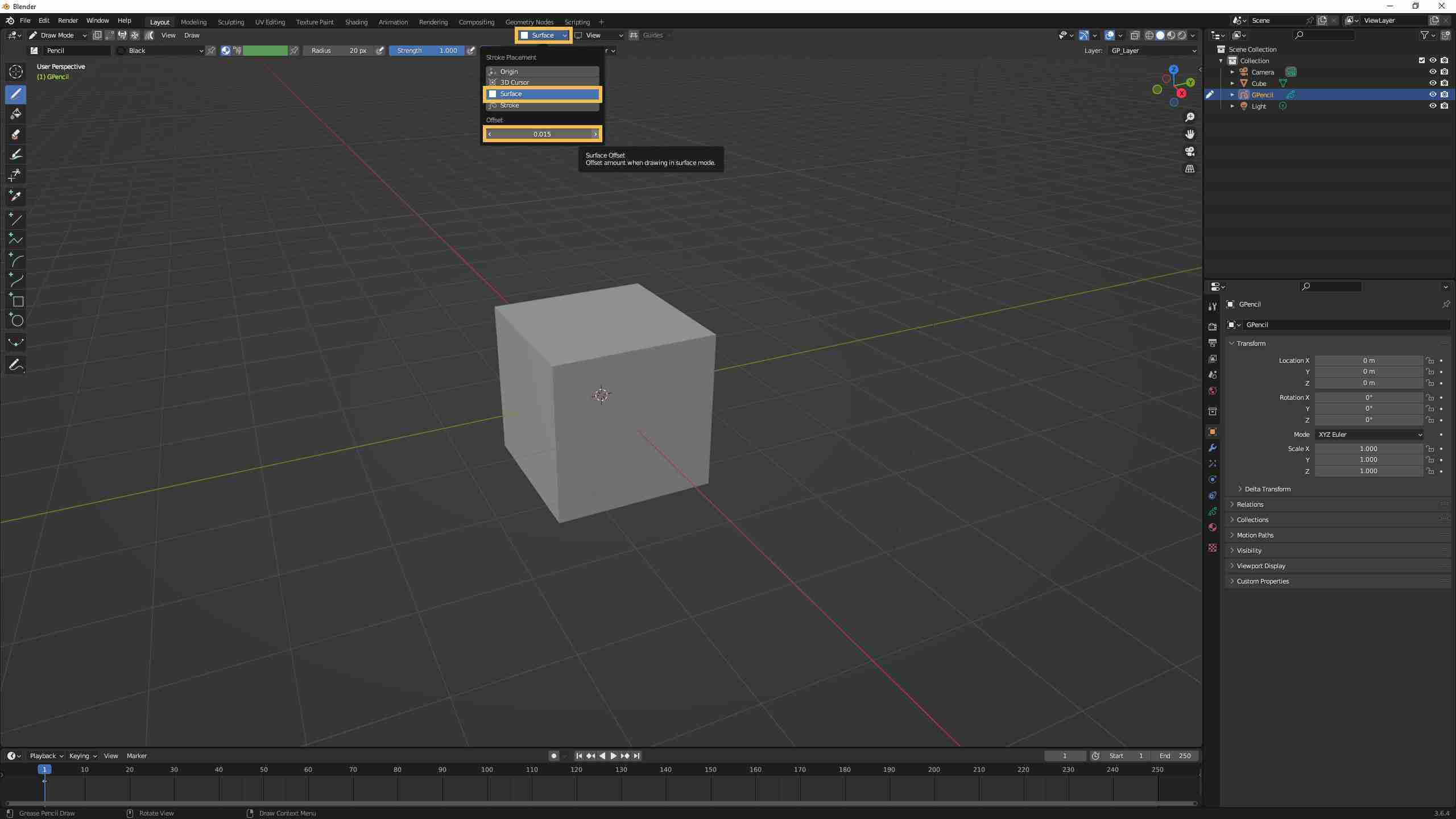
Place your cursor on the object where you would like to draw and begin drawing.

The stroke is now sitting flat on the object.

Final Thoughts
Adding Blender Grease Pencil drawings to a 3D object is simple and easy; however, if you have questions about this tutorial, send me a message through the Contact page.
Want to see additional Blender tutorial videos? Check out the following Blender trainings or visit my YouTube channel.