Blender Background Image Tutorial! 2 Great Ways to Add a Blender Background Image to Your Project
In this Blender background image tutorial, I’ll cover two Blender add background image options that you can use in your next project. These options include:
- How to add a background image to Blender’s viewport
- How to add a background image to Blender outside of the viewport in the Compositing tab
The first option adds the background to the camera.
The second option addresses changing the world background Blender color to a world background image Blender uses as the background. You can do this in the viewport through an environment texture; however, this tutorial provides the option of using a world image outside of the viewport. The Blender world background image can be adjusted in various ways while working in the Compositing tab.
I’ll also address some ways your Blender background image not showing up can be fixed if you have issues.
This tutorial offers two ways to learn. You can watch the video or follow along with the blog post.
Blender Background Image: Adding a Background Image in the Viewport
Select the camera and click on the Camera properties tab. Check the Background Images option, open the dropdown, and click the Add Images button.

Click the Open button to choose an image from the computer. Navigate to where the image is located. Select it, and click the Open Image Button.

The image will appear desaturated. Click into the Opacity setting and change it to 1.000. This section also provides additional functionality, such as changing how the image is framed to the camera, the color space, and the position, rotation, and scale settings.

Even though the image is visible in the viewport, the image will not be rendered. To render the image, it needs to be added to the Compositing tab.
Blender Background Image: Adding a Background Image in the Compositing Tab
At the top of the Blender screen, click the Compositing tab.

Click the Use Nodes checkbox at the top left to enable nodes. The viewport will be populated with the information from the scene, such as the Render Layers node and the Composite node.

In the Viewport, click the SHIFT and A keys to open the Add menu.

Click into Search box in the popup menu, and type Alpha Over.

Click the Enter key to drop the Alpha Over node into the viewport.

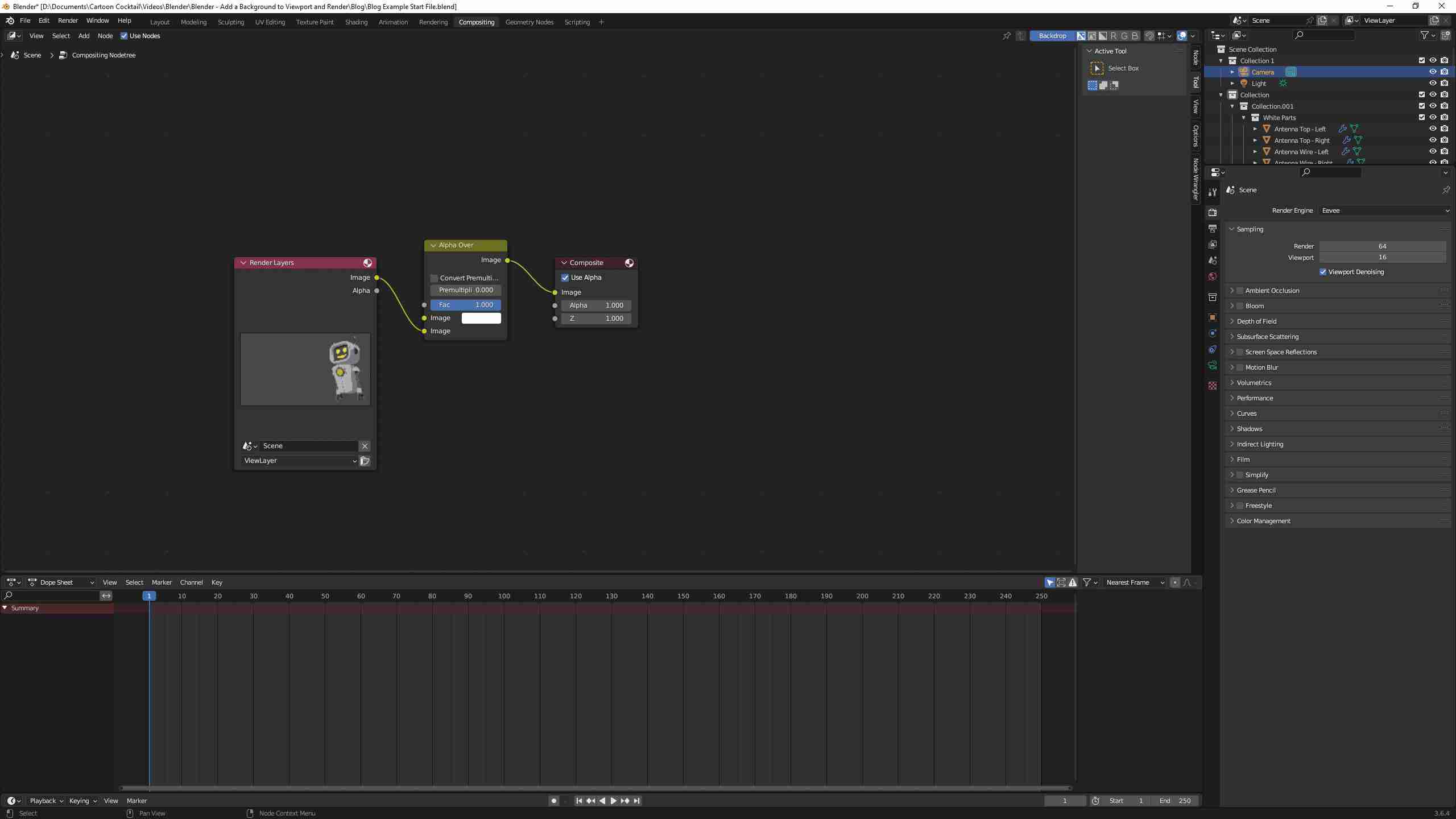
The Alpha Over node is used to layer images, so drag it between the Render Layers node and the Composite node. Dropping the Alpha Over node between the two nodes will connect it.

Click and drag the Render Layers connection down to the second Image connection on the Alpha Over node.
In the Viewport, click the SHIFT and A keys to open the Add menu. Click into the Search box in the popup menu, and type in Image. Click the Enter key to drop the node into the viewport. Connect the Image connection on the Image node to the top Image connection on the Alpha Over node. Click the Open button at the bottom of the Image node.
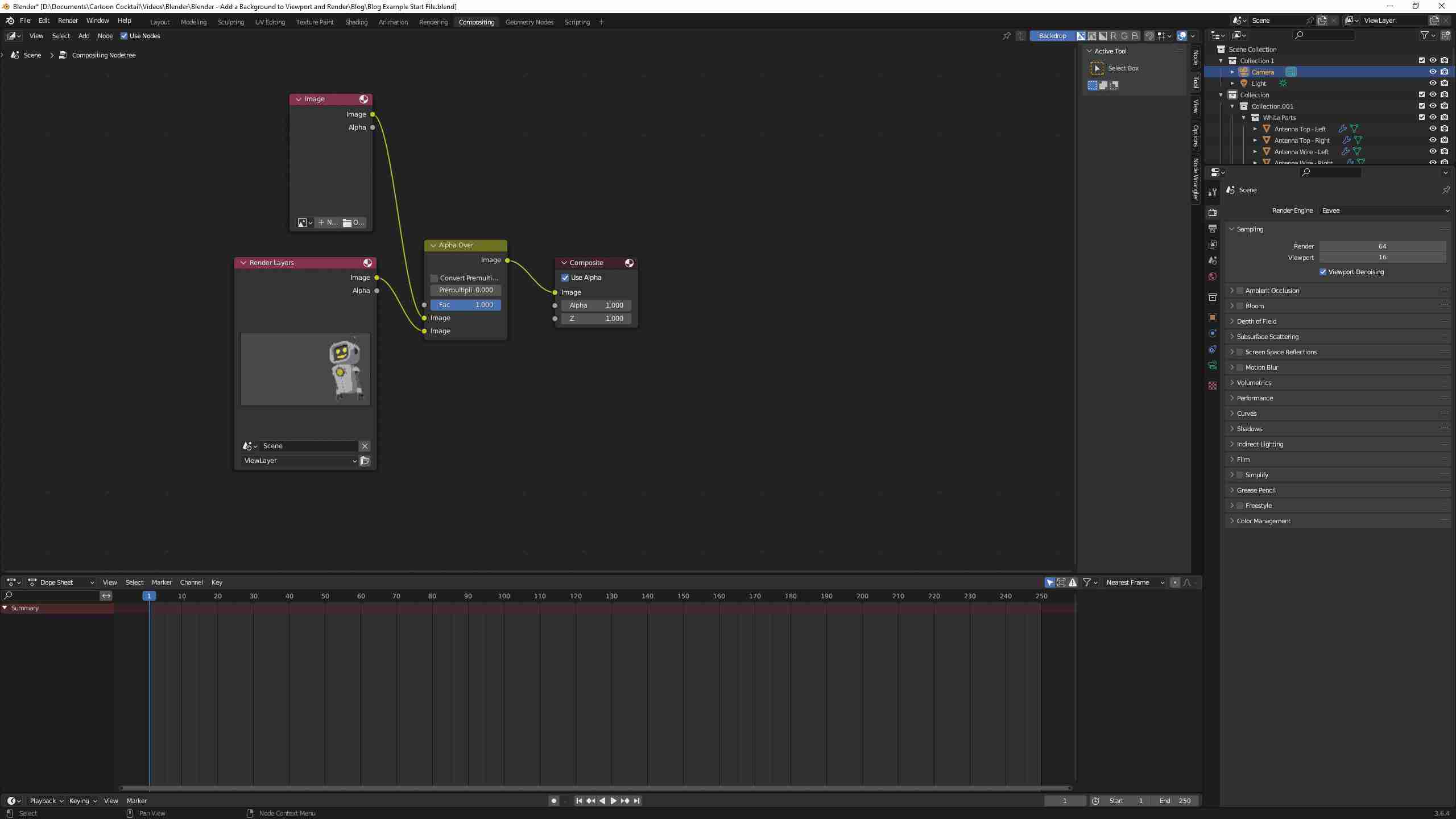
Navigate to the location where the image is stored. Select it and click the Open Image button.

The image is now visible in the Image node, and the node has been renamed to the image’s name.

The background image is not be visible if rendered. Instead, the background would be based on the World color setting.

To correct this issue, click on the Render properties tab, open the Film section, and check Transparent.

The image is now visible when rendered; however, in this instance, the background is not filling the camera view completely.

To correct this issue, in the Viewport, click the SHIFT and A keys to open the Add menu. Click into the Search box in the popup menu. Type Scale. Click the Enter key to drop the Scale node into the viewport. Drag the Scale node between the Image node and the Alpha Over node. Drop the Scale node to connect it. Change the dropdown option to the appropriate selection. In this instance, Render Size corrects the issue.


Final Thoughts
Hopefully, these two Blender background image options are helpful and you can use them in your workflow.
If you have questions about this Blender background image tutorial or have other Blender questions, send me a message through the Contact page.
Want to see additional Blender tutorial videos? Check out the following Blender trainings or visit my YouTube channel.